General
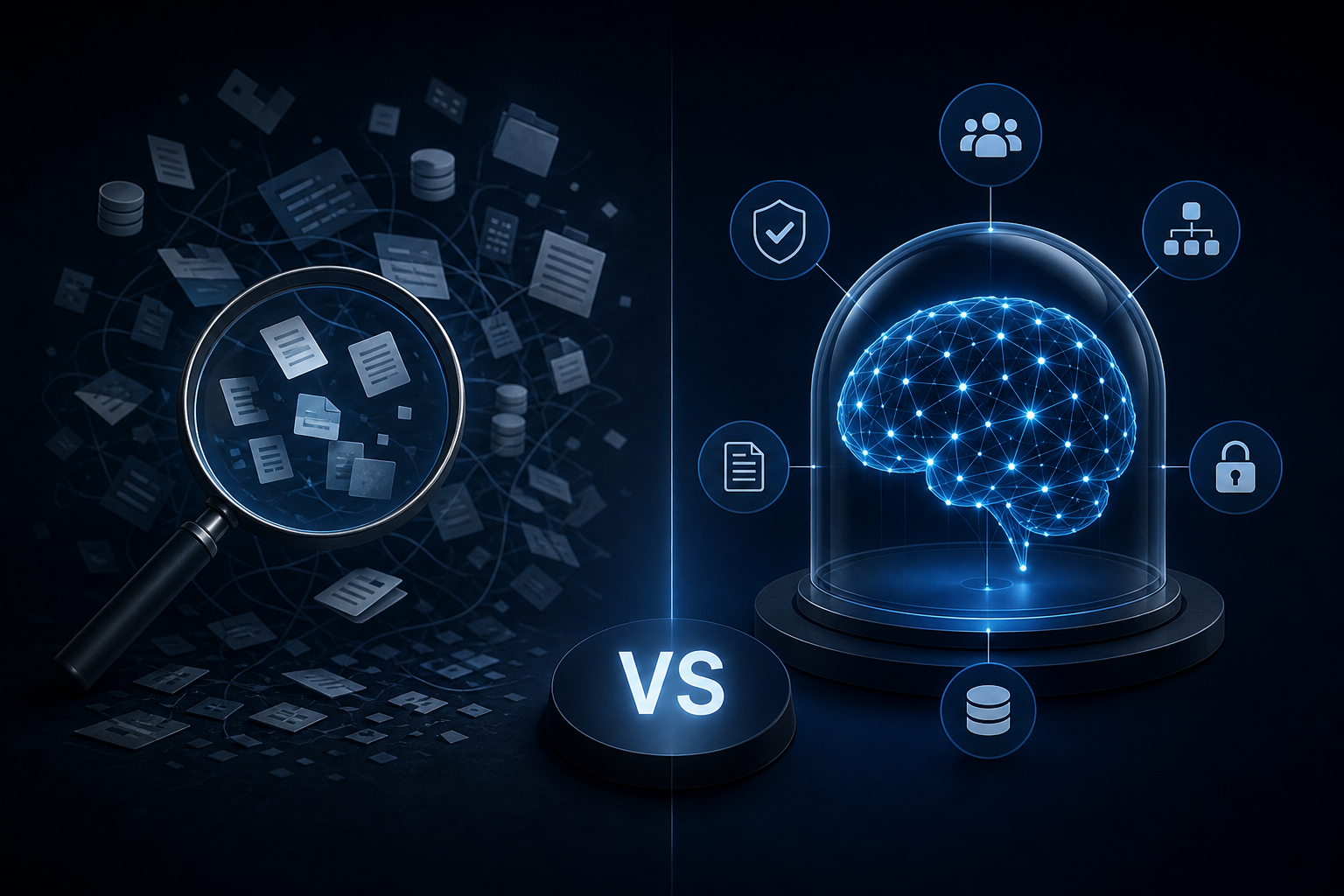
Enterprise AI Search vs. a Governed Company Brain: Key Differences
Discover how enterprise ai search differs from a governed company brain and which knowledge approach your team actually needs to act on trusted data.
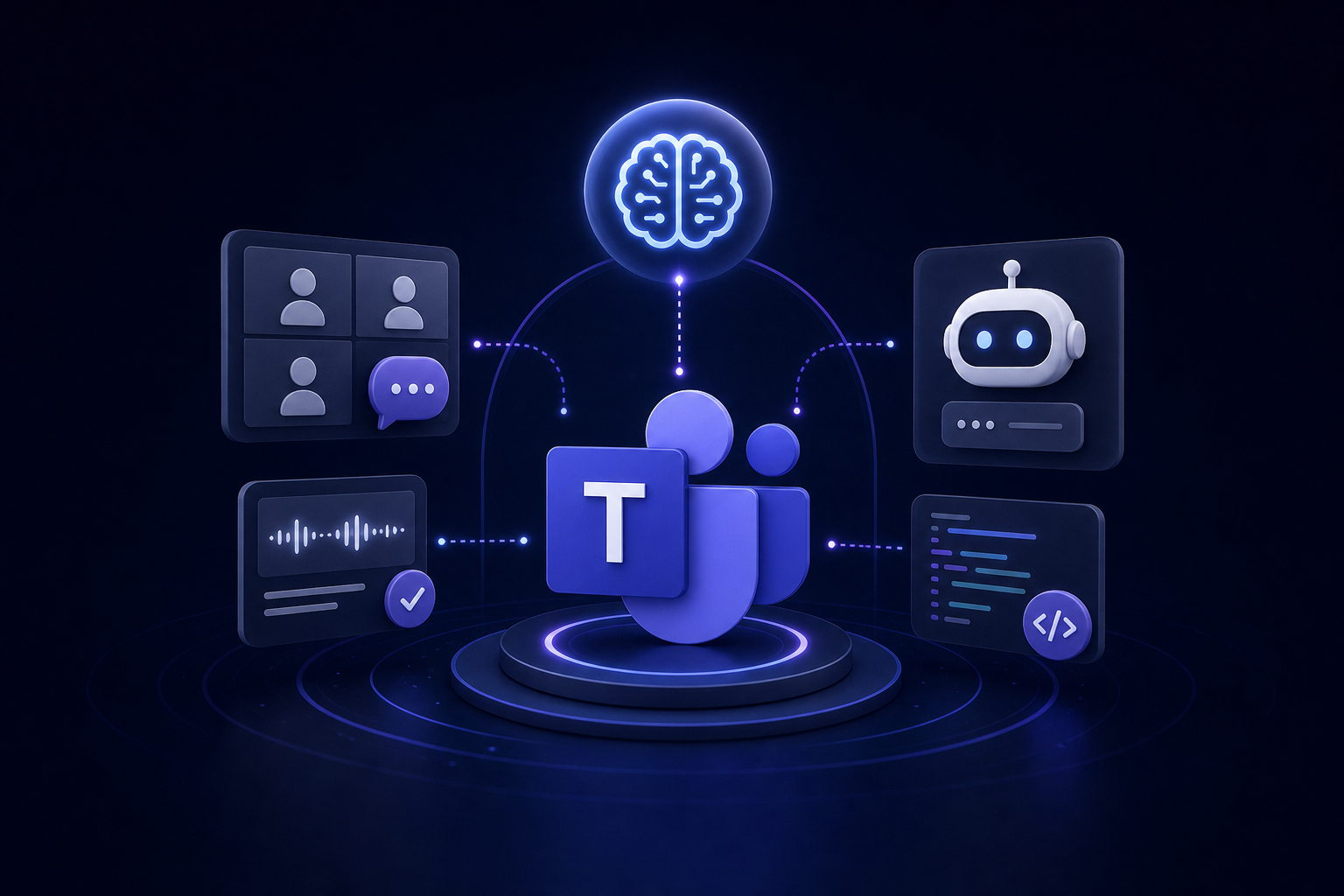
Master microsoft teams ai integration with this guide covering Copilot meeting notes setup and custom agent development across five practical steps.
Microsoft Teams AI integration works on two levels: end users enable Copilot-powered meeting notes and recaps through the Teams admin center, while developers build custom agents with the Teams AI Library and Agent Framework. Both paths run inside Teams without replacing existing tools, and together they cover everything from automated summaries to fully conversational AI workers.
This guide walks through both tracks in the order you would actually do them: first, the admin and meeting settings that control AI notes, then the five-step developer path to a custom agent, and finally the point where a single Teams bot is no longer enough.
Teams ships with Microsoft Copilot as its native AI layer. You do not need a third-party tool to get AI-generated meeting summaries, channel recaps, or chat assistance. Copilot is built into the Teams interface and activates once the right licenses and admin policies are in place.
On the end-user side, Copilot handles three core jobs. It generates meeting notes and action items during or after a call. It produces intelligent recaps that summarize what was discussed and who committed to what. And it answers natural-language questions about a meeting's content, even after the call ends.
On the developer side, Teams exposes a separate layer: the Teams AI Library and the Agent Framework. These let you build a custom AI agent that lives inside Teams as an app, routes messages to a model backend of your choice, and responds in the chat interface like any other participant. This is not the same as enabling Copilot. It is a distinct integration path for teams that need behavior Copilot does not cover.
Research from Microsoft found that 80% of workers given access to a generative AI tool built into their work apps used it during a six-month trial. That adoption rate reflects how little friction the built-in path creates. The tool is already where your team works.
The rest of this guide covers both tracks. Start with the admin settings if your goal is meeting notes. Jump to the developer section if you are building a custom agent.
Enabling AI meeting notes in Teams requires action at two levels: the tenant admin center and the individual meeting settings. Copilot meeting notes are not on by default for every organization. A paid Copilot add-on is required for the full feature set, though some recap capabilities are available without it.
Follow these steps in order:
Forrester's analysis found that Copilot in Teams saves end users an average of 25 hours per year on meeting-related tasks. Getting the admin settings right is what makes that possible for your team.
You can turn off AI-generated notes at three levels: the entire tenant, a specific meeting policy, or an individual meeting. The right level depends on whether you are addressing a compliance requirement, a team preference, or a one-off call.
To disable at the tenant level:
To disable for a specific group of users:
To disable for a single meeting:
Note that some tenant configurations restrict certain Copilot features regardless of these settings. If you find that toggles are grayed out or changes do not take effect, check with your Microsoft 365 administrator to confirm whether organizational compliance policies are overriding your selections.
After a meeting ends, Copilot surfaces the recap in two places: the meeting chat thread and the calendar event. Open the chat for the meeting in Teams and look for the "Recap" tab at the top. That tab holds the AI-generated notes, action items, and, if a recording was saved, the intelligent recap with chapter markers and speaker attribution.
From the calendar, open the event and select the "Recap" tab there as well. Both entry points show the same content. The notes include a summary of what was discussed, a list of follow-up tasks with the names of people who committed to them, and timestamps linked to the recording if one exists.
Sharing the notes takes two clicks. Inside the Recap tab, use the share icon to copy a link or forward the summary directly to someone in Teams chat or email. Attendees with the right license can access the recap on their own. Non-attendees can receive a shared link, but their ability to view the full recap depends on your organization's sharing permissions and whether the meeting was recorded to a shared location.
One thing to know: if transcription was disabled for the meeting, the AI notes will be limited. The full recap, including action items tied to specific speakers, requires transcription to have run during the call. If your notes look thin after a meeting, that is the most common reason. Check the meeting policy settings covered in the previous section and confirm transcription was active.
Copilot handles the built-in layer. When you need an AI worker that follows your own logic, connects to your own data, and behaves in ways Copilot does not support, you build a custom agent using the Teams AI Library and the Agent Framework. The library handles the Teams-specific plumbing: message routing, activity handling, and the response stream back to the chat. You bring the model and the instructions.
Here is the five-step path from zero to a working agent inside Teams.
Step 1: Install the Teams CLI and scaffold a new project.
Install the Teams Toolkit CLI and run the scaffold command for your preferred language, either TypeScript or Python are the most supported paths. The scaffold generates the project structure, the manifest file Teams needs to recognize your app, and the entry point for your agent logic. You get a working shell before you write a single line of custom code.
Step 2: Define the agent by selecting a model backend and writing the system instructions.
Point the agent at a model. OpenAI and Azure OpenAI are the primary supported backends. Other model providers are possible through the library's abstraction layer, but the setup steps for those are not standardized in the current SDK documentation, so expect more manual configuration. Once the model is wired in, write the system prompt. This is where you define what the agent knows, how it responds, and what it refuses to do. Treat it like a job description: the more specific you are here, the more predictable the agent's behavior will be in production.
Step 3: Integrate the agent into the Teams app runtime.
Register the agent as a Teams app by completing the app manifest with the correct bot ID, permissions, and scopes (personal, team, or group chat). Deploy the bot endpoint to a host Teams can reach, either Azure Bot Service or a tunneled local endpoint during development. The Teams AI Library's activity handler maps incoming messages from Teams to your agent logic and streams the model's response back to the chat interface. At this stage, you can test the agent in Teams by sideloading the app package.
Step 4: Establish a session buffer to maintain conversation state.
By default, language models are stateless. Each message arrives without memory of what came before. The Teams AI Library provides a conversation state interface that stores the message history for each unique conversation ID. Implement this so the agent can reference earlier turns in the same chat. Without it, users asking follow-up questions get responses that ignore everything said before, which breaks any multi-turn workflow.
Step 5: Add middleware to transform or ground the agent's outputs.
Middleware runs between the model's raw response and what the user sees. Use it to add citations when the agent pulls from a document store, to filter outputs against a content policy, or to reformat the response for Teams' card rendering. This step is where you close the gap between a model that generates text and an agent that produces trustworthy, usable answers. If you are grounding the agent against internal data, the citation layer here is not optional. Users need to know where an answer came from.
Once all five steps are complete, you have an agent that lives inside Teams, responds in chat, remembers the conversation, and returns grounded outputs. You can connect it to SharePoint, your CRM, or any API your backend can reach. The Teams interface stays the same for the user. The work happens underneath.
For a broader look at what AI agents can do inside an existing stack, the AI agents for business explainer covers the patterns that apply across tools, not just Teams.
The productivity case for Teams AI integration is not theoretical. Two pieces of research put specific numbers on it.
Forrester's 2025 analysis found that Copilot in Teams saves end users an average of 25 hours per year by streamlining meeting-related tasks. That figure covers time spent writing up notes, chasing action items, and catching up on meetings you missed. Multiply that across a 30-person team and the hours add up fast, even before you count the developer-built agents running on top.
The same Microsoft study found that regular Copilot users spent 3.6 fewer hours on email every week. That is time that was previously eaten by summarizing threads, drafting replies, and triaging inboxes. Teams AI integration, when it covers both the meeting layer and the channel layer, addresses both of those drains at once.
The point is not that AI replaces work. It is that the administrative overhead around work, the notes, the recaps, the follow-up emails, shrinks. Your team spends that recovered time on the work that actually requires a person.
If you are thinking about where Teams AI fits inside a broader effort to automate workflows without replacing your existing software, the productivity gains here are one input to that decision, not the whole picture. The meeting notes save time. The custom agent saves more. The question is what you connect it to next.
A custom Teams agent is a good start. It lives in chat, remembers the conversation, and connects to one or two data sources. But it still operates in isolation. It does not know what your CRM logged this morning, what your ops team decided last quarter, or what your finance team flagged in yesterday's report. It answers questions about what it was told. That is a narrow job.
This is the gap between a bot and a governed data layer. In that same Microsoft research, 80% of workers given access used the tool within six months, which tells you adoption is not the hard part. The hard part is giving the AI something accurate and current to work from across your whole organization, not just the slice of data one agent can see.
Singular Innovation builds what comes after the first agent. Singular is an AI systems firm that consolidates scattered data sources, automates recurring workflows, and deploys AI agents called HyperAgents inside the tools a company already uses, including Teams. The output is a Company Brain: a governed, auto-updating knowledge layer that every team member and every AI worker draws from as a single source of truth. You own it from day one. Nothing is rented back to you through a vendor subscription.
A HyperAgent connected to a Company Brain does not just answer questions in Teams chat. It executes recurring workflows, surfaces decisions from across your stack, and updates itself as your data changes. That is a different category of work than a single Teams bot.
Pricing depends on scope. Specific pricing for Core, Growth, and Enterprise engagements requires a strategy call.
Prices and plan limits verified as of October 2026.
No. The full Copilot feature set in Teams, including AI-generated meeting notes, intelligent recaps, and the Copilot chat interface, requires a paid Copilot add-on license assigned to each user. Some basic recap capabilities may be available at lower tiers, but the complete AI note-taking experience is not part of the standard Teams license. Check your current Microsoft 365 plan to see what is already included before purchasing additional licenses.
Partially. Copilot can generate some meeting summaries using the live transcript without saving a recording. However, the full intelligent recap, including AI-generated chapter markers, speaker attribution, and timestamps linked to specific moments, requires a recording to be saved. If you want notes but not a stored recording, enable transcription only and set recording to off. Your notes will be less detailed but will still capture the key discussion points and action items.
The Teams AI Library is a higher-level SDK built on top of the Bot Framework. The Bot Framework handles the low-level activity routing between Teams and your bot endpoint. The Teams AI Library adds an abstraction layer on top of that: it manages conversation state, connects to a model backend, handles prompt management, and provides the middleware pipeline for grounding and output transformation. If you are building a conversational AI agent rather than a simple command bot, the Teams AI Library is the right starting point.
The meeting organizer needs a Copilot license for the AI notes to be generated. Attendees who also hold a Copilot license can access the full recap directly from their own Teams calendar or meeting chat. Attendees without a license can receive a shared link to the notes, but their access to the full recap depends on your organization's sharing permissions. Non-attendees follow the same rule: a shared link works, but the depth of what they can view depends on how your tenant is configured.
Yes. Once your agent is deployed and running inside Teams, the model backend can call any API your server-side code can reach. You can connect it to a CRM, a database, a document store, or an internal tool that exposes an API. The Teams AI Library does not restrict your data connections. The middleware layer in Step 5 is where you handle the output from those external calls, adding citations or reformatting responses before they reach the user in chat.
Microsoft Teams AI integration covers two distinct layers. The first is the admin-controlled Copilot layer: meeting notes, intelligent recaps, and transcription-based summaries that you enable through the Teams admin center and meeting policies. The second is the developer layer: a custom agent built with the Teams AI Library that routes messages to a model backend, maintains conversation state, and returns grounded outputs. Both run inside Teams without replacing anything your team already uses.
Start with the admin settings if your immediate goal is AI meeting notes. If you need an agent that follows custom logic or connects to data outside Microsoft 365, work through the five-step developer path. And if a single agent is not enough to cover your organization's full workflow, that is the point where a governed data layer becomes the next decision to make. Book your free 30-minute AI Audit to map where your stack is ready and where the gaps are.
Discover how enterprise ai search differs from a governed company brain and which knowledge approach your team actually needs to act on trusted data.
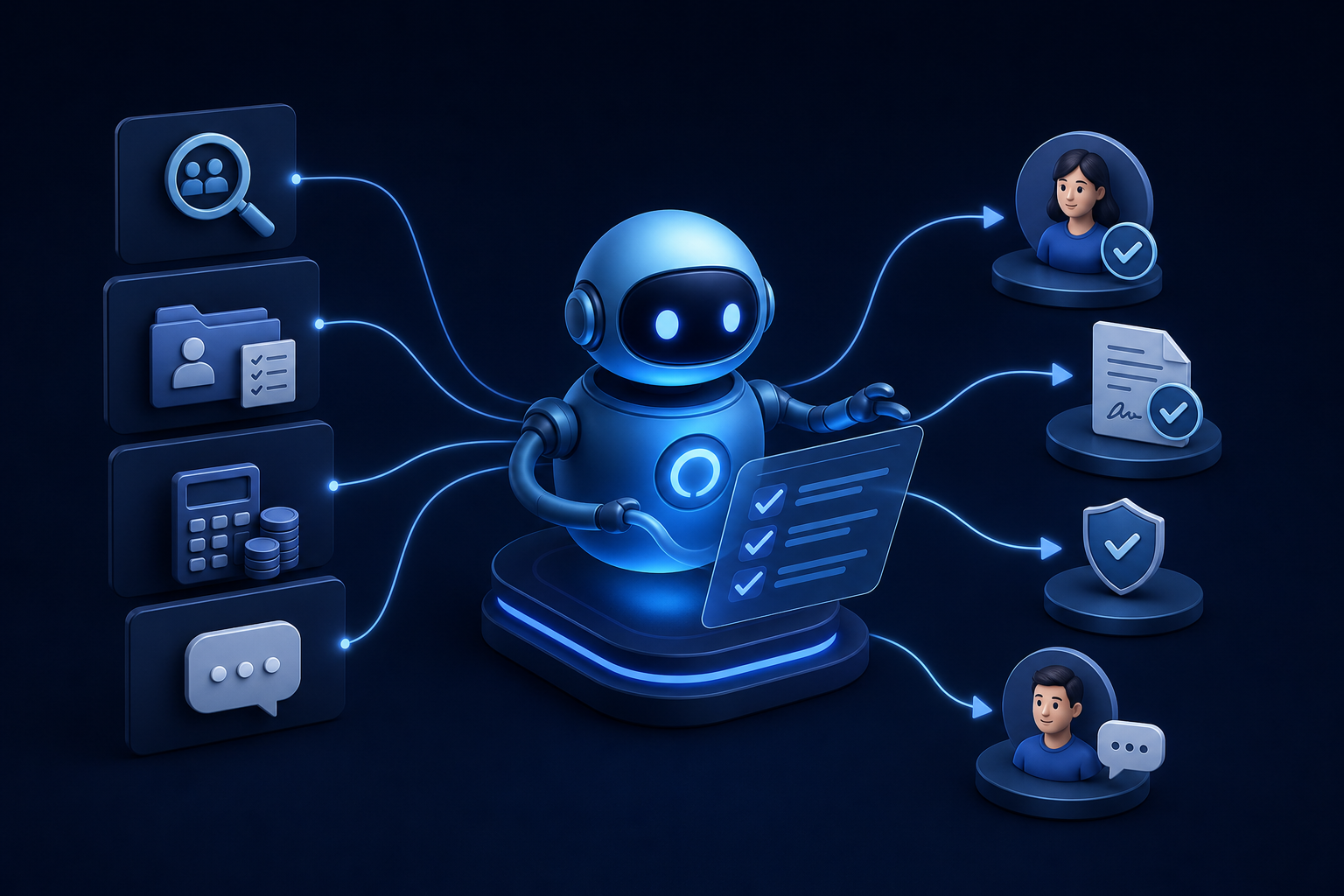
Discover how ai for hr automation handles recruiting, onboarding, payroll checks, and employee Q&A so your team can focus on work that matters.
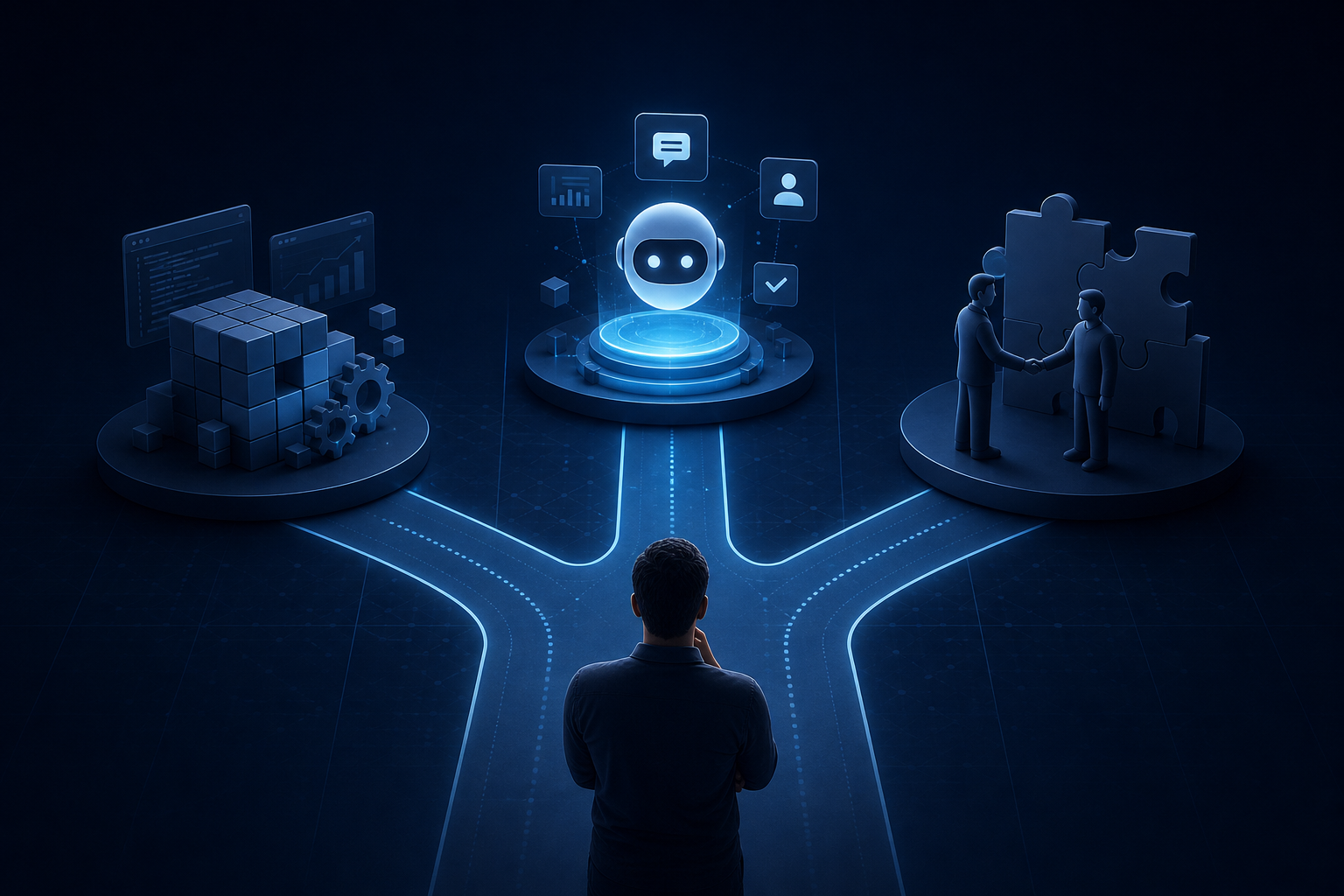
Explore custom ai agent development paths: build in-house, buy pre-built, or partner with a specialist. Find the right fit for your team today.


